Version 1.0.2
Updated 10 Oct 2026 Recently updated
$29.00
Zin Tasks is a daily planner and task manager that runs on your own computer. No account, no cloud, no subscription. Unzip it, double-click Start, enter your key once, and today’s plan opens in your browser. Install it on your PC from the browser and it runs like any app, in its own window with its own icon. Everything you type stays in one file on your machine.
Format
.zip
You can also buy it on Gumroad
Same app, same price. Gumroad sends the download, and your licence key follows by email within 24 hours.
Zin Tasks is a daily planner and task manager you run from a folder on your Windows PC. There is nothing to sign up for: unzip, double-click Start, enter your key once, and it opens in your browser with today’s plan on screen. Pay once, use it for as long as you like.
Plan your day on a timeline, move work across a board, see your week day by day, and keep track of who you are waiting on. Your tasks live in one file on your computer. There is no account, no cloud and no monthly fee.
Key features
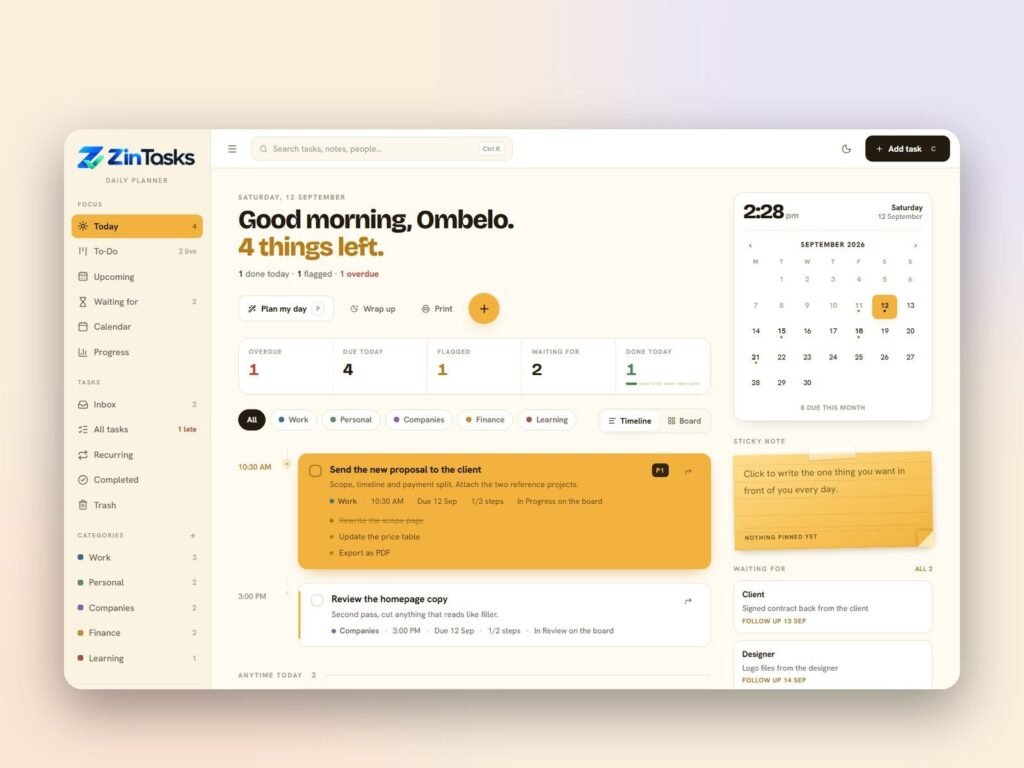
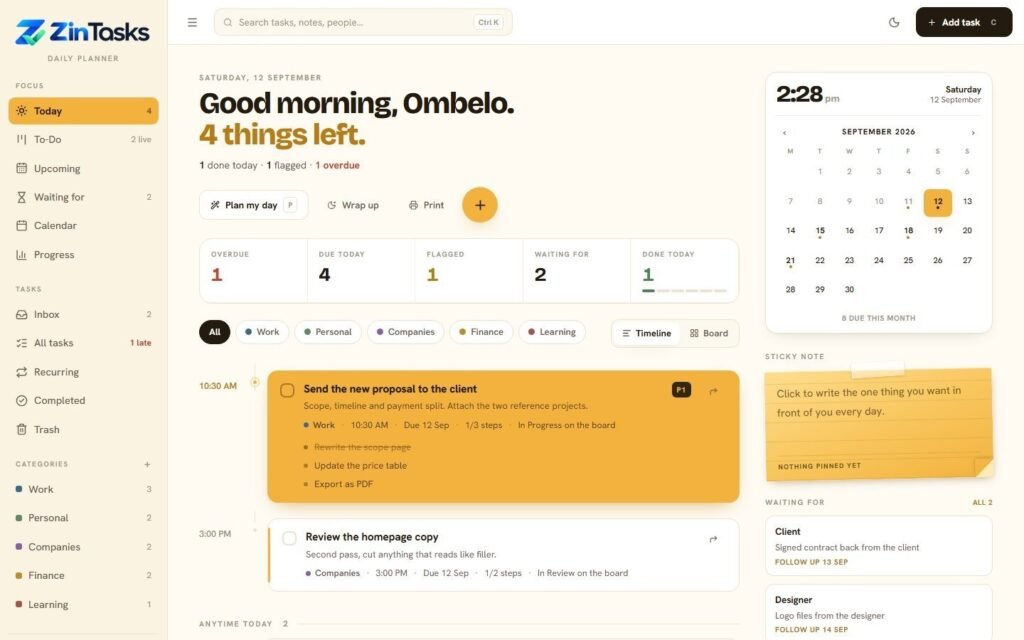
Today timeline
Your day split into Priority, Scheduled and Anytime, with a time rail.
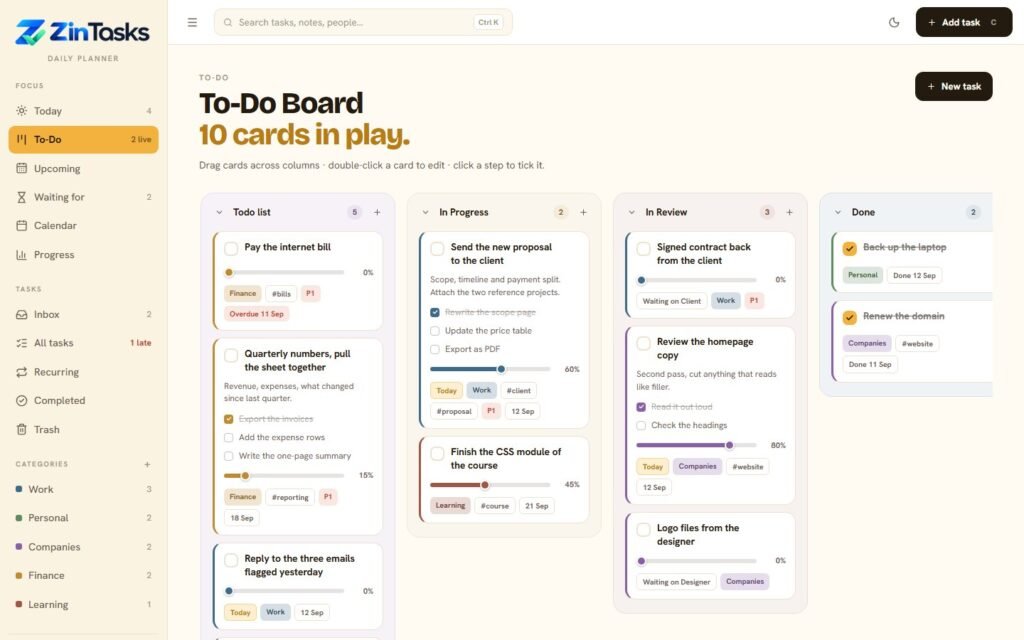
Four-lane board
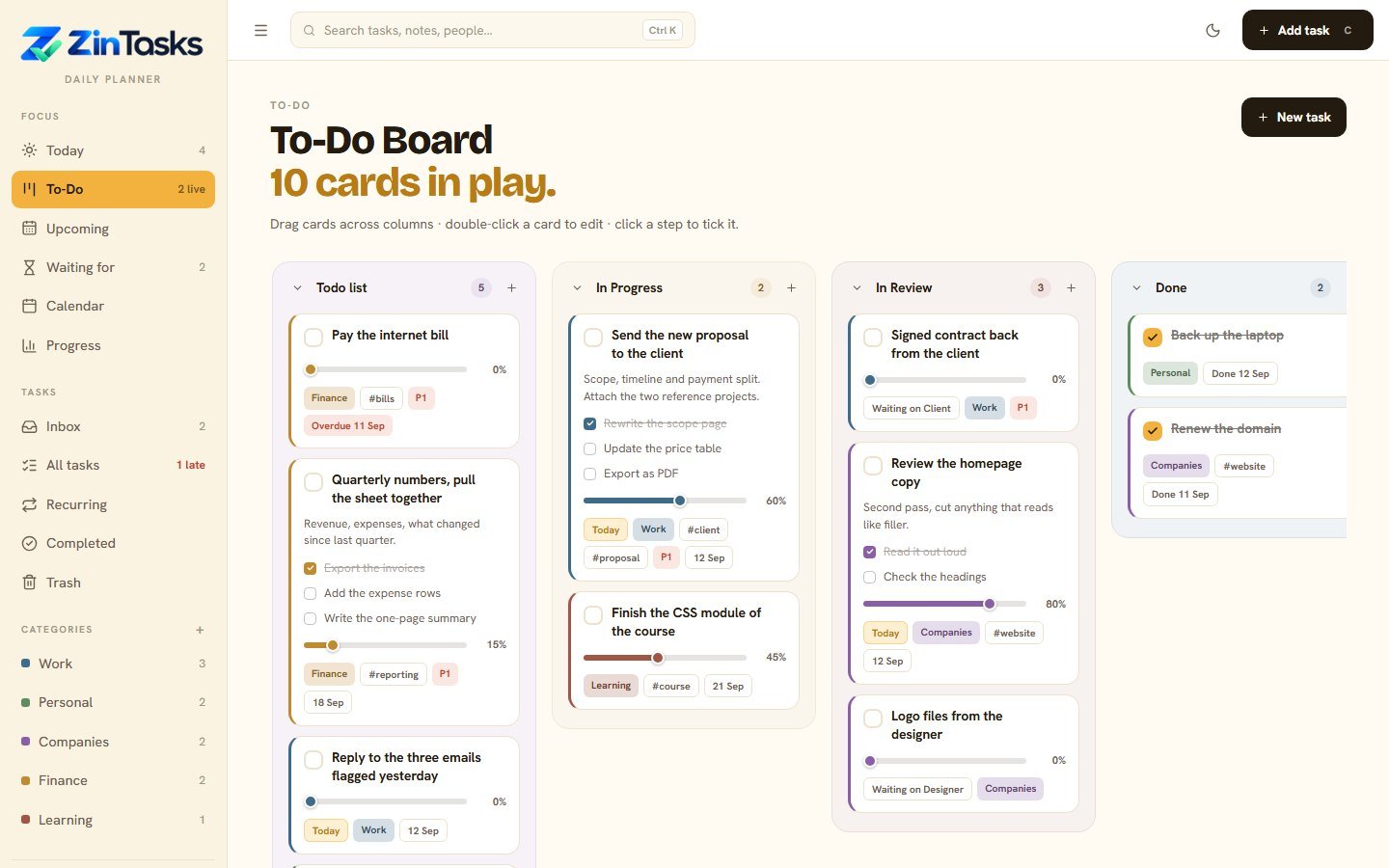
Drag cards across Todo list, In Progress, In Review and Done.
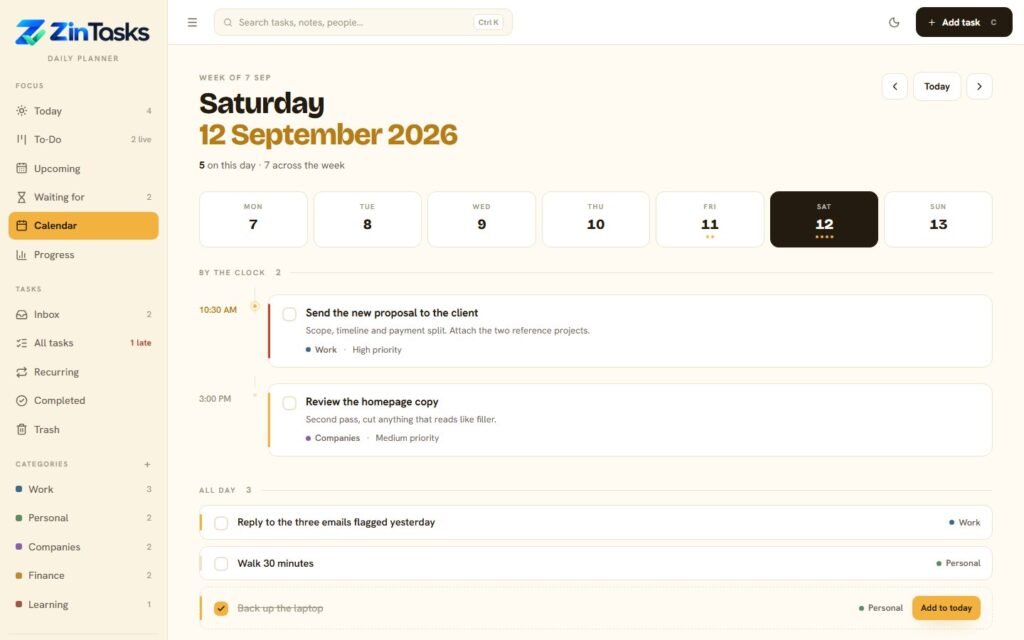
Week calendar
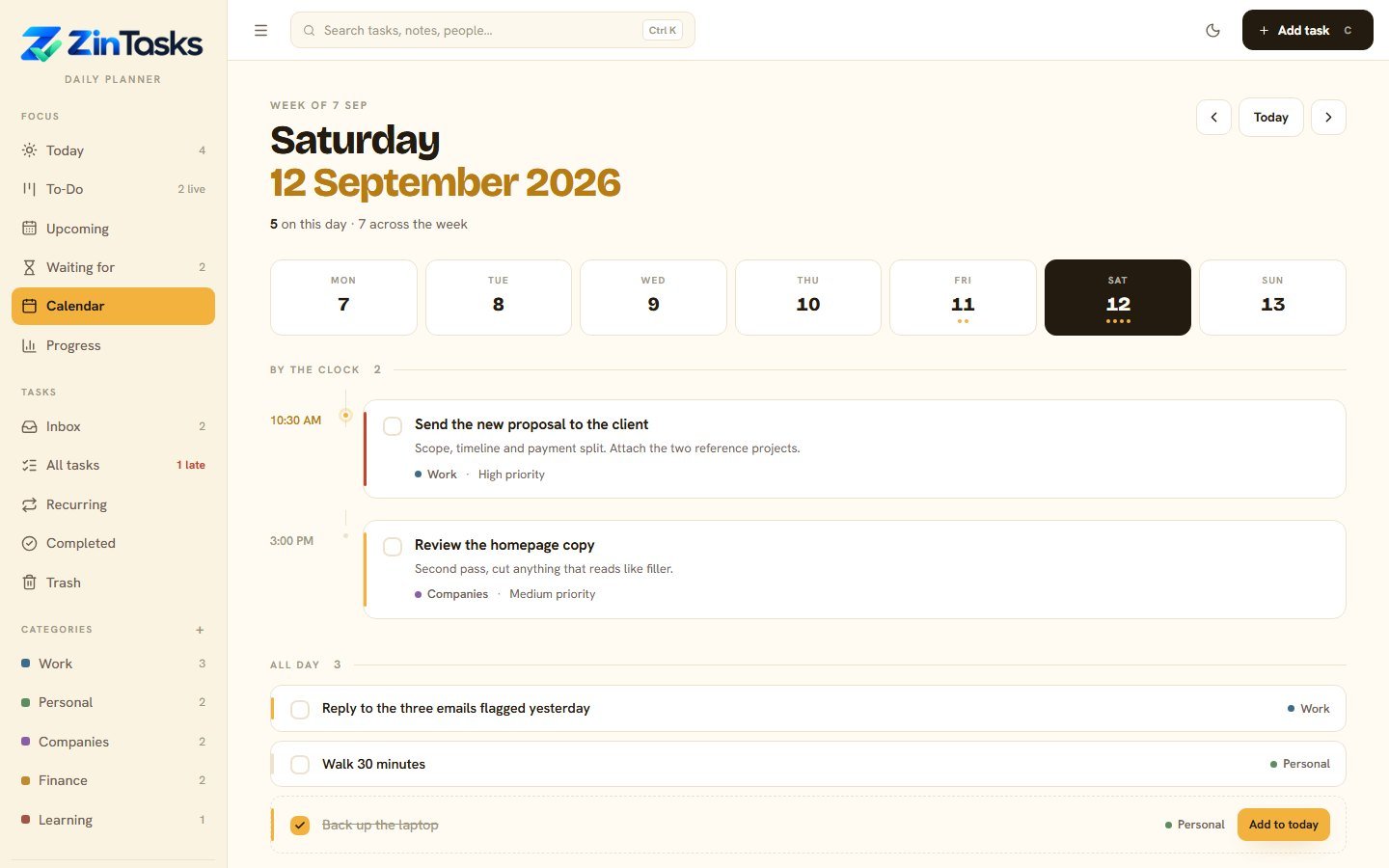
See each day by the clock and all day, Monday to Sunday.
Waiting for list
Note who owes you what, and when to follow up.
Desktop reminders
A Windows notification before a timed task, even with the planner window minimised. Turn them on in Settings.
Progress and streaks
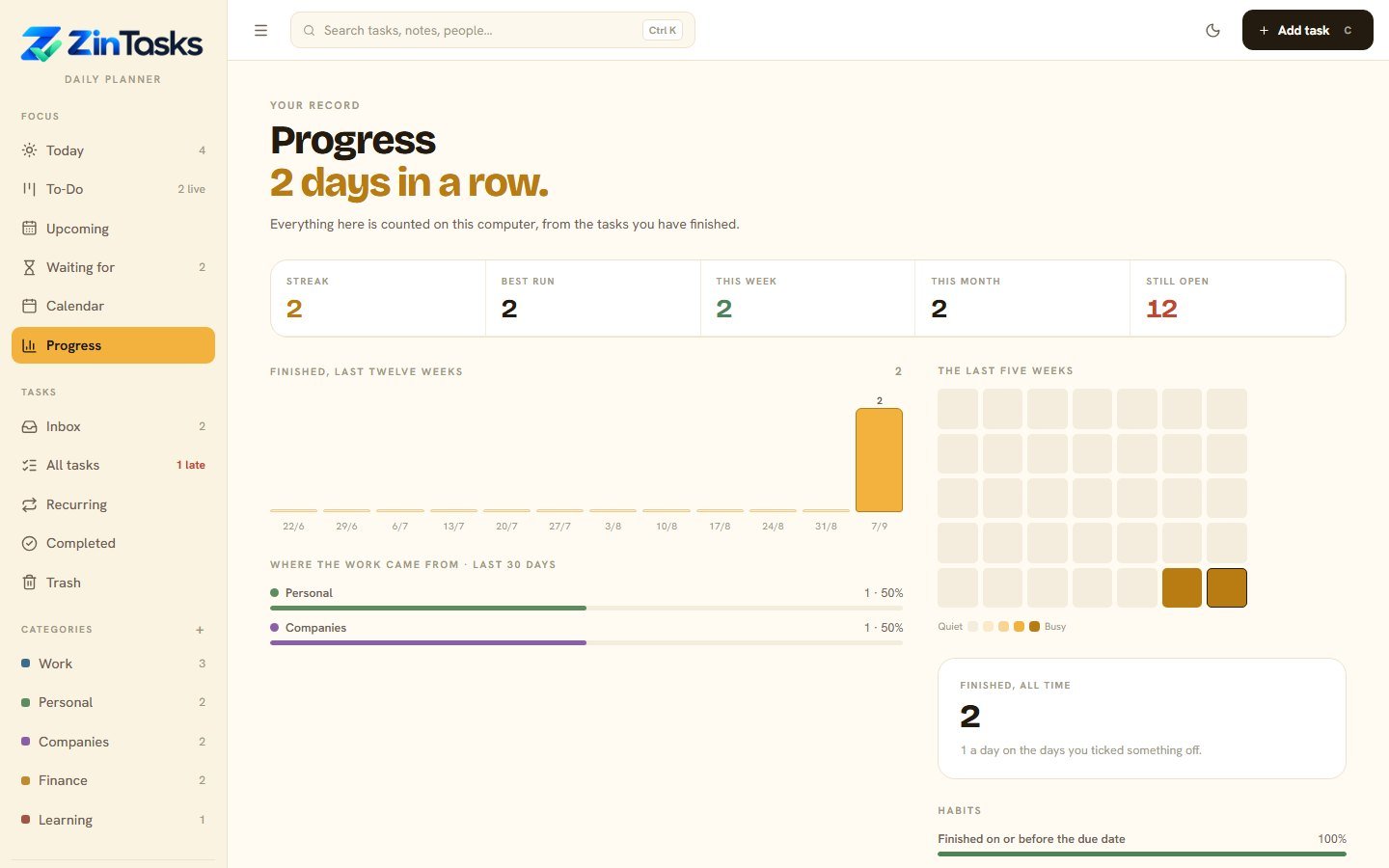
Your streak, a 12-week chart and how often you finish on time.
Easy move-in
Import a CSV from Todoist, TickTick, Microsoft To Do or a spreadsheet.
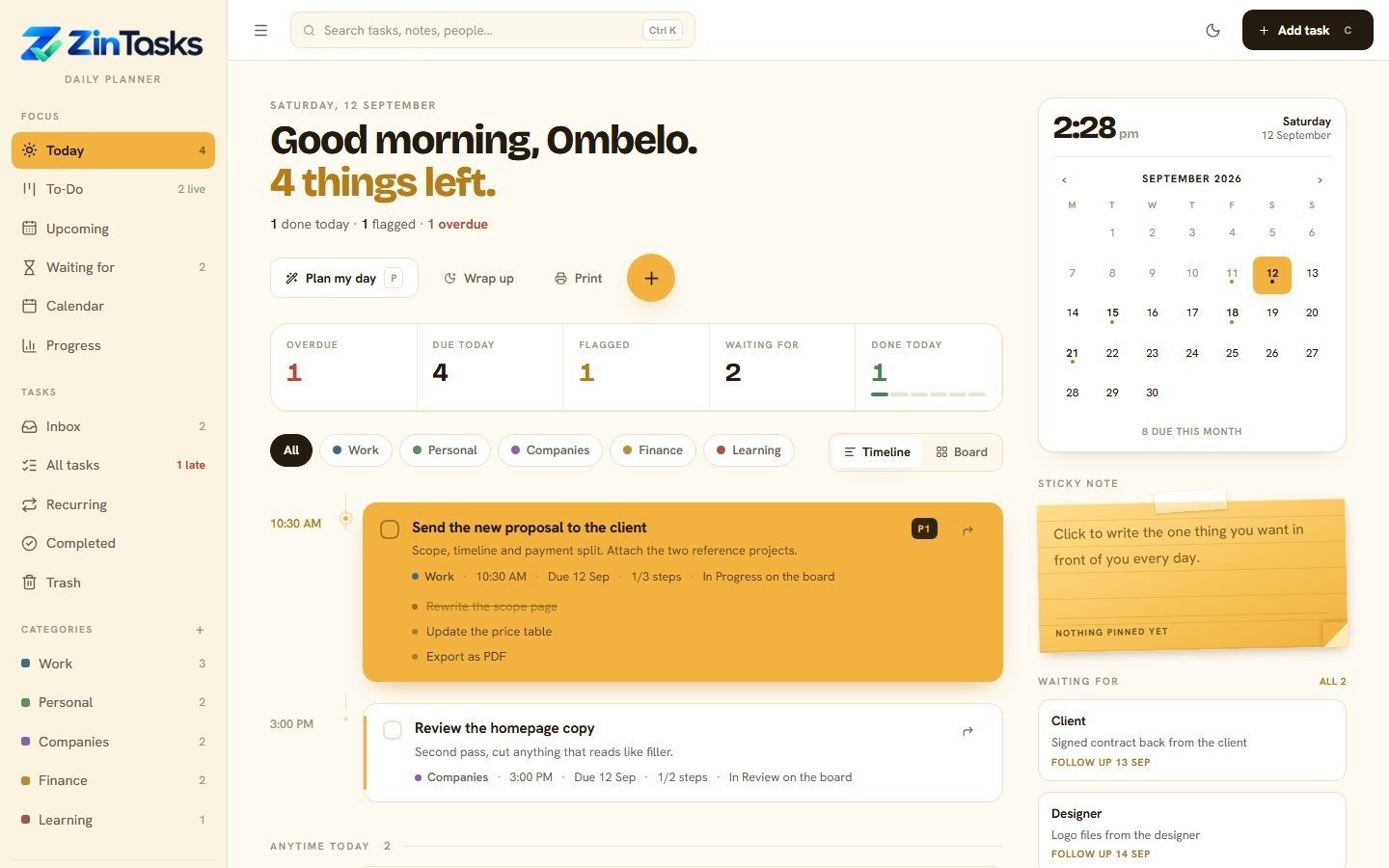
The Today page shows what matters now. Timed and flagged tasks sit on a timeline, and the rest wait in Anytime. Press P for "Plan my day" to pick from overdue, due and important tasks. At night, "Wrap up" moves what is left to tomorrow.
Move cards across four lanes. Each card has a progress slider, steps, tags and an area colour. Drop a card on Done and the task is finished. Double-click a card to edit it.
Step through the week, Monday to Sunday. Pick a day to see its timed tasks "By the clock" and the rest under "All day". Add an all-day task to today with one click.
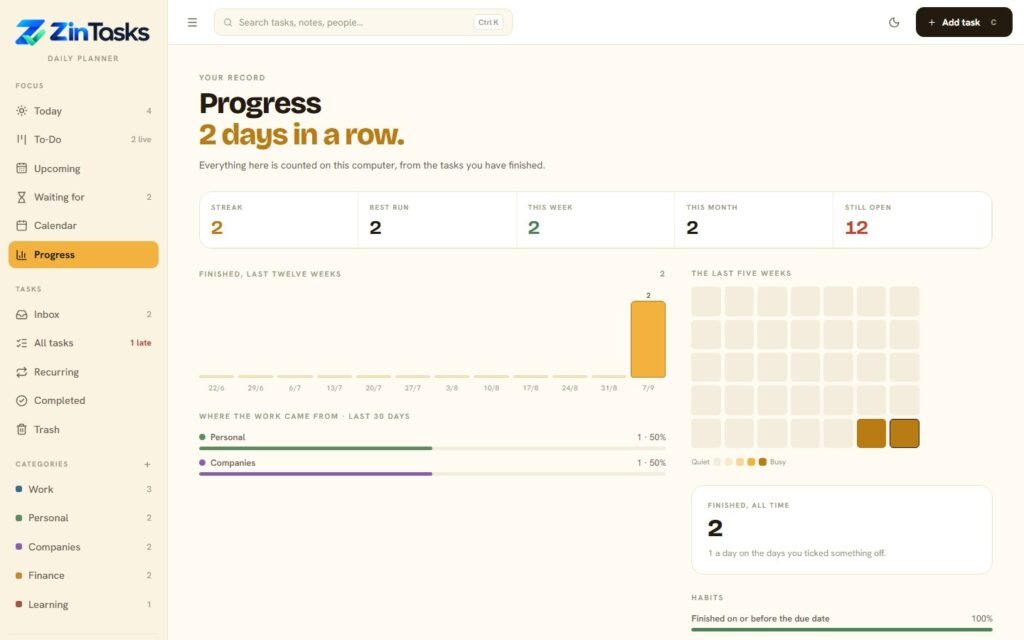
Progress shows your streak, best run, this week and this month. A 12-week chart, a five-week heat grid and an on-time rate show your habits at a glance.
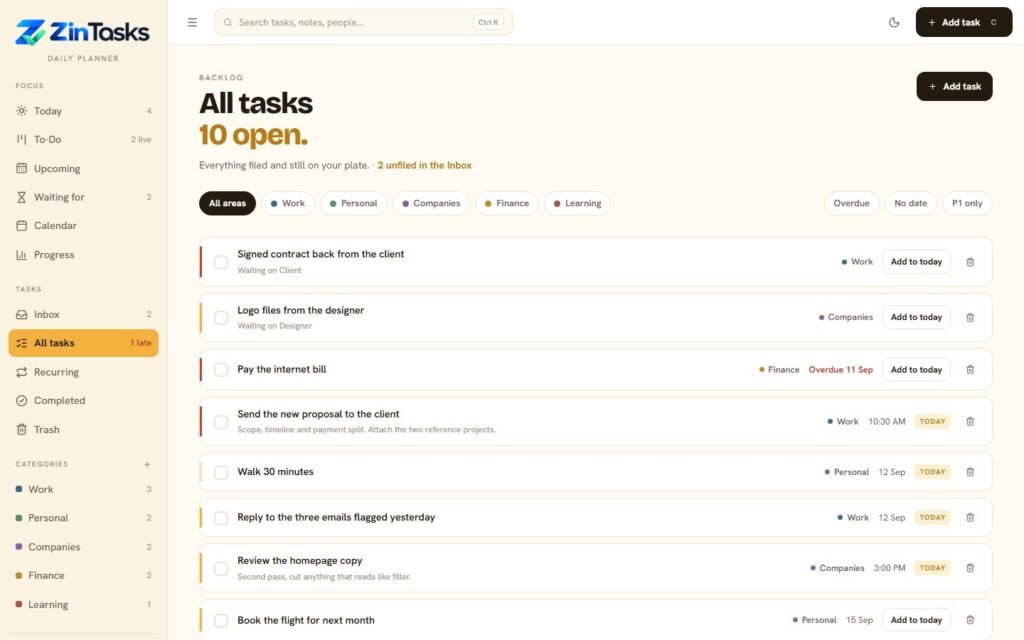
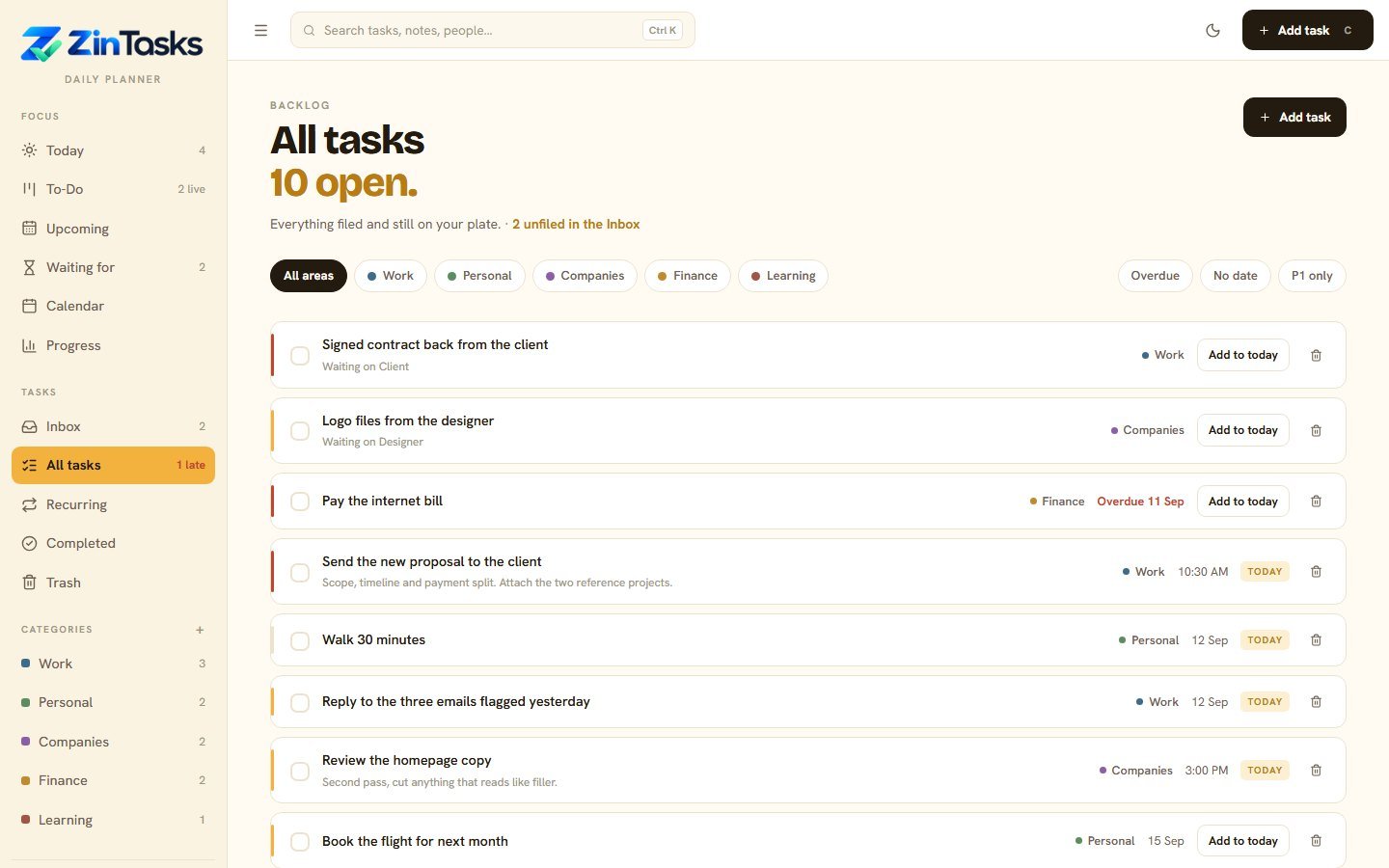
All tasks is your backlog. Search titles, notes and names. Filter by area, Overdue, No date or P1 only.
Everything included
Full feature list
Plan your day
Today page in three parts: Priority, Scheduled, Anytime
Timeline rail for timed tasks
"Plan my day" suggests up to 15 tasks
"Wrap up" moves leftovers to tomorrow or back to the backlog
Quick counts: Overdue, Due today, Flagged, Waiting for, Done today
Weekly review checklist with five checks
Sticky note on the Today page
Mini month calendar and a desk clock
Tasks your way
Three priority levels: high, medium, low
Due date and time
Steps (subtasks) inside any task
Areas with your own colours
Repeating tasks: daily, weekly or monthly
Inbox for quick ideas you sort later
Optional smart add reads "tomorrow 3:30pm #Work" from the title
Board
Four lanes: Todo list, In Progress, In Review, Done
Drag cards between lanes; Done completes the task
Progress slider from 0 to 100% on each card
Tags, area, due date and a high-priority flag on each card
Collapse a lane, or add a card straight into one
Tick steps right on the card
Drag to reorder
Views
Today, To-Do board, Upcoming, Waiting for, Calendar, Progress
Inbox, All tasks, Recurring, Completed, Trash
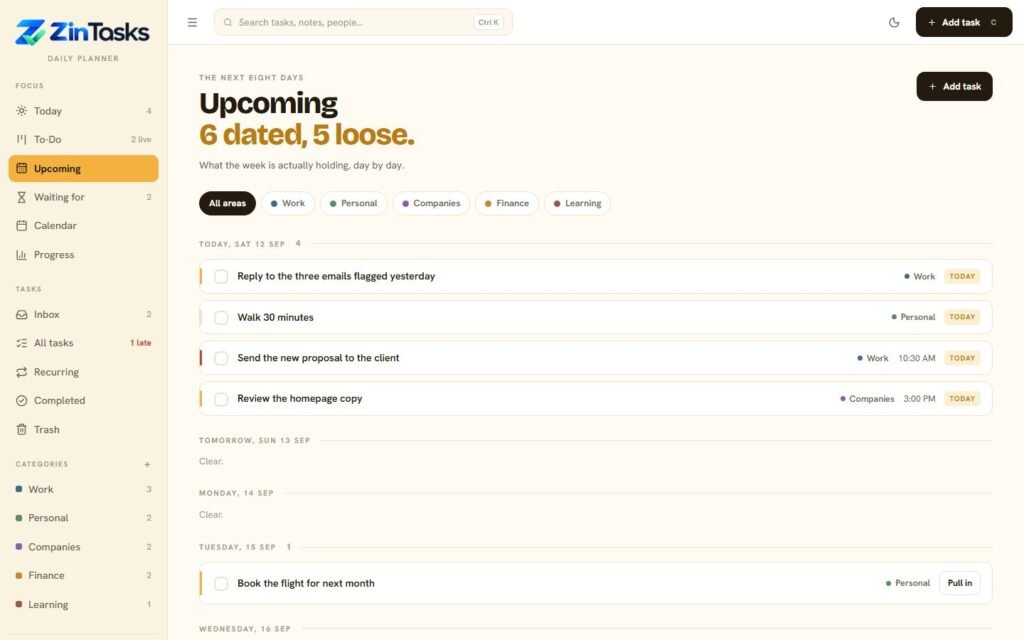
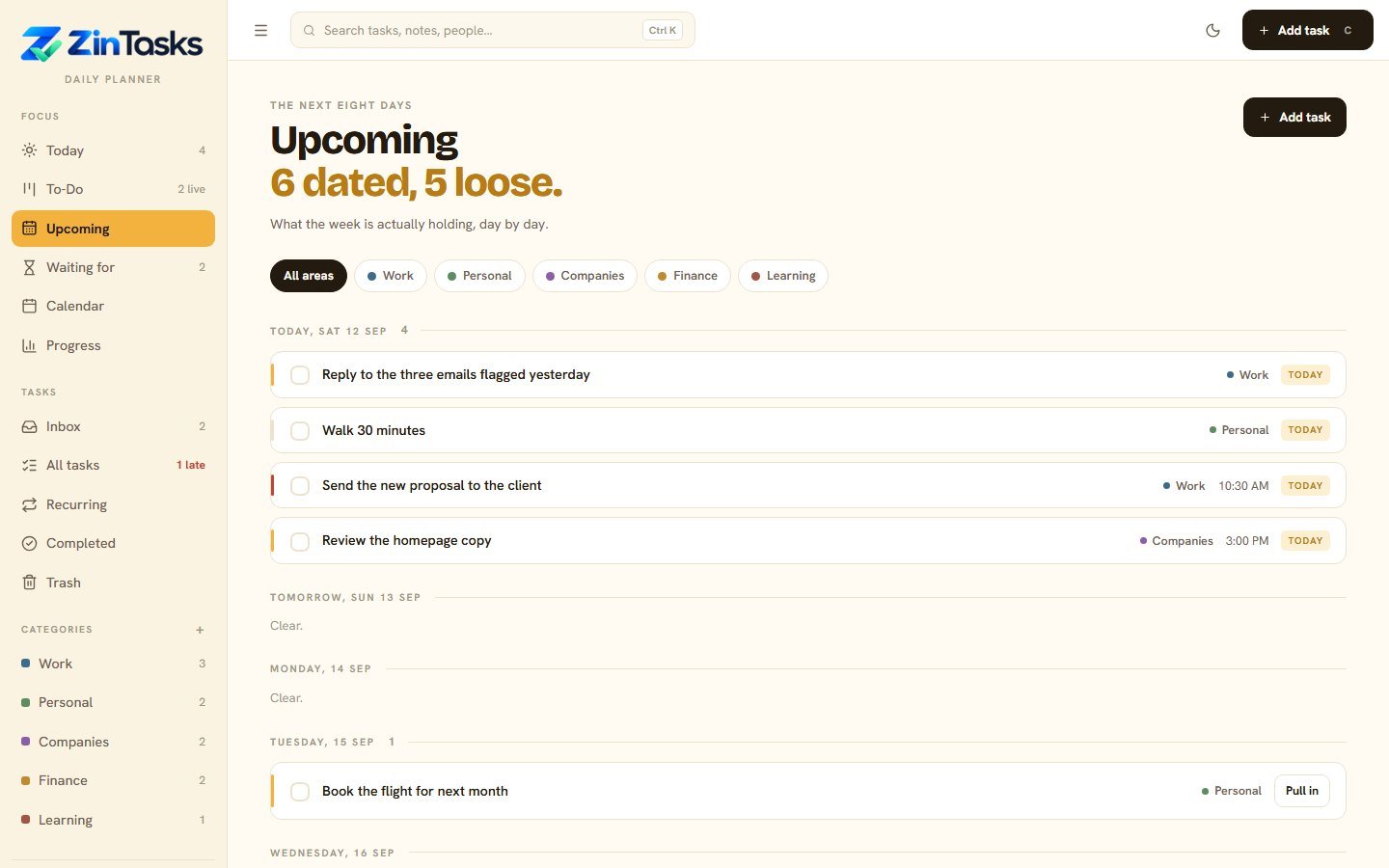
Upcoming: today plus the next 7 days, with "Pull in"
Calendar: week view, by the clock and all day
All tasks: search plus Overdue, No date and P1 only filters
Filter by area
Waiting for and reminders
Waiting for list: who, since when, follow-up date
Reminders as Windows notifications
A card in the corner if notifications are blocked
Remind 0 to 120 minutes before
Each task is announced once
Reminders arrive even with the window minimised
Off at first: turn them on in Settings
Your progress
Current streak and best run
This week, this month, all time, average per day
12-week bar chart and five-week heat grid
Work by area over the last 30 days
On-time rate, overdue count, oldest open task, busiest weekday
Safe and private
Works offline after a one-time activation
No account, no tracking, no online licence checks
Only answers on your own computer
Optional password lock with a hint
Undo bar after you delete something
Trash keeps items for 30 days
Empty trash asks you to type a word first
Your data
CSV import from Todoist, TickTick, Microsoft To Do or a spreadsheet
Import only adds and never deletes
Keep your old app's projects as areas if you like
Backup to a file and restore it
Or simply copy one file: database\database.sqlite
Sample tasks to try it, removable later
Make it yours
Your name in the greeting, plus your own tagline
Five accent colours: Honey, Slate, Moss, Plum, Clay
Dark mode
Slim icon menu
Shortcuts: C new task, P plan my day, / search, Ctrl+K search
Install on this PC as its own app window
Print a day sheet or save it as a PDF
Requirements
Windows 10 or 11, 64-bit
A web browser. Chrome or Edge if you want to install it as an app
Internet once, to activate. No internet? Ask for an offline unlock code by email
About 150 MB of free disk space
PHP and the Microsoft Visual C++ runtime are included, so no XAMPP, Composer, Node or other installs
Port 8666 free (the README shows how to change it)
What's in the download
Zin-Tasks-1.0.2-Windows.zip (about 68 MB): the full app and its source code
A portable PHP runtime and the Microsoft Visual C++ files it needs, so there is nothing else to install
Start.vbs to start, Stop.bat to stop, Reset-Password.bat
README.md: setup, licence, backups, updates and support
LICENSE.txt
Your licence key, on the order page and in your order email
Updates
Changelog
Version 1.0.2
10 October 2026
New The Microsoft Visual C++ runtime now ships inside the folder, so Zin Tasks starts on a fresh Windows PC
New If a Windows part is still missing, Start says so and links to the free download from Microsoft
Fixed Reminders now arrive while the planner window is minimised, as long as Windows notifications are allowed
Improved Moving to a new computer is now one email. The app and the README say so, and the licence check is harder to copy
Fixed README corrections for the calendar (a week view), Settings and areas
Fixed Times and reminders now follow your computer's clock, and every time shows as 12-hour AM/PM (4:22 PM)
New Setting a time is easier. Type the hour and minutes in two boxes (the colon is built in) and tap AM or PM
Fixed If you skip AM or PM, the likely one is picked (4:58 means PM, 9:00 means AM), and a task moved to a new time reminds you again
Improved Reminder cards in the planner are bigger and stay until you close them
New Settings shows where to turn on Windows notifications if no pop-up appears
Version 1.0.1
7 October 2026
New A small "Starting Zin Tasks" window while the planner opens, with no black console window
Improved Start now waits until the planner is ready instead of a fixed wait
New If start-up is slow, a message tells you what to do and how to reach support
Fixed Ctrl+C no longer opens the new task box, and Ctrl+P prints again. Letter shortcuts now work only on a plain key press
Fixed Ticking a step in the board popup no longer closes the popup
Fixed Unsaved steps now show a clear remove button
Fixed Names of collapsed board lanes stay on one line
Fixed Settings now shows the real version number
Removed Start.bat. Use Start.vbs instead
Version 1.0
September 2026
New First release, with the Today timeline, the board, the week calendar, Progress, reminders, CSV import, backups, a printable day sheet and install as an app
FAQ
Questions people ask
Do I need the internet?
Only once, to activate. After that it works fully offline, with no online licence checks.
No internet at all? Open the "I have an unlock code" tab, email the machine code and your receipt to support@zinuxtech.com, then paste in the unlock code you get back.
Is there a free trial?
No. The app needs a key to open. You can try the live demo in your browser first.
Can I use it on two computers?
No. One key activates one computer. For a second computer, buy a second key.
Moving to a new computer? Email your receipt to support@zinuxtech.com and we will move your key. Then activate on the new computer with the same key.
Renamed your PC, moved the Zin Tasks folder to another drive, or reinstalled Windows, and it asks for your key again? Email us the same way and we will move your key.
Where are my tasks kept?
In one file on your PC: database\database.sqlite inside the Zin Tasks folder. We cannot see your tasks. To back up, copy that file or use Settings, then Backup.
Can I bring my tasks from another app?
Yes. Import a CSV from Todoist, TickTick, Microsoft To Do or a spreadsheet. The import only adds tasks and never deletes any.
How do I get updates?
Updates for version 1 are free. Use Settings, then "Check for updates". Run Stop.bat first, then unzip the new version over the old folder. Your tasks stay, and the database updates itself. If you changed the port, change it again after the update.
Windows says "Windows protected your PC". Is that normal?
Yes, this happens with new apps. Click "More info", then "Run anyway".
Can I get a refund?
Yes, if the download never arrived, the file is broken, it is very different from its description, or you were charged twice. Read the full refund policy.

★
No reviews yet
Reviews here come from people who actually bought the file, so this space stays empty until someone does.